Contact Information
Live support is available via chat from 8am–5pm CT, Monday–Friday.
Phone: (844) 654-6876
Email: support@myvetstoreonline.pharmacy
Online Inquiry: Submit a help request
Register or log in to purchase prescription items, place Autoship orders or use a promotion code. If you are purchasing non-prescription items, you may not need to log in. For guest checkout, you will need to verify your email address at checkout.
You will receive an email confirming your order. Once we have reviewed any items requiring approval*, your order will ship and you will receive a second email with order tracking information. If you have questions, please give us a call.
Thank you for supporting our practice and for shopping on our online store!
*Please allow up to 48 hours (2 business days) for approval of your order.
Forgot your password? Here’s a step-by-step to get you logged in.
Enter your login and click “Send Password Reset Email.
If you don’t remember your login, connect with your clinic or MyVetStoreOnline support, and we’ll look it up for you. Your login was created when you registered. It must be entered exactly as registered with correct capitalization. Logins cannot be changed.
You’ll receive a reset password email from support@myvetstoreonline.pharmacy. Be sure to check your Spam or Junk folder if you don’t see it within a few minutes. Click “Reset Password” or copy paste the link into your browser. Didn’t receive a reset email? Contact your clinic or MyVetStoreOnline support and we can verify your email address and resend a reset email if needed.
Enter a new password and verify. You cannot use a previous password. Click “Change password.”
You’ll be directed back to the Sign In screen. Log in using your new password.
Learn how easy it is to set up and manage Autoship orders for continuous, worry-free delivery right to your door. Get started today!
Using your username and password, log into your online store account.
Using the search bar or the category menus, search for the item you would like to put on Autoship. Begin by selecting which animal the product is for as well as flavor, size, strength and quantity, if applicable. Then, select “Autoship” and “Start Autoship.
Click the shopping cart icon or “Go to Cart” button. Once within the shopping cart, choose the frequency of your Autoship and order date. Click “Continue Checkout.”
Verify your shipping address. Next, under “Shipping Information,” select the preferred shipping method. Then, enter your billing address and billing method. Click “Next.”
Review your order details, verify that you agree with the terms and conditions and click “Order.”
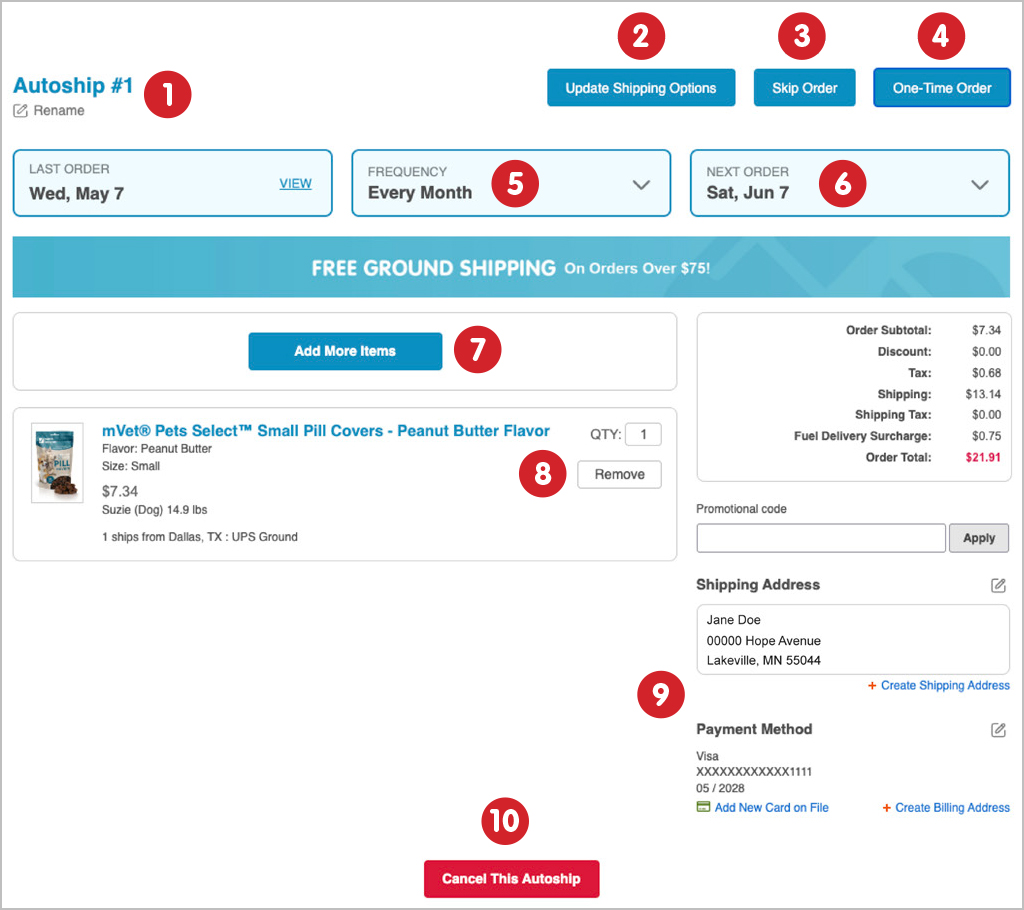
Within the top navigation, click “My Autoships.” This is where all Autoship orders will display. If you just placed an order that contains a prescription item, your clinic may need to approve the order before it will appear under “My Autoships.”
If you received an email stating your credit card was declined, your order has been placed on hold. To get your order back on track for shipping, you’ll need to reset your payment information.
Once you’ve logged in, click “Order History/Tracking” from the top navigation menu.
From the left-hand navigation menu, under "Orders", click “Order History.” Orders on hold will appear within the “Ship/Cancel Details” column as “Payment Failure.” Click the order number to open the detail page. If you don’t see your order, set the “Status” drop-down to “On Hold” and click the blue “Search” button.
Under “Billing Information” > “Billing Method,” select “New Card.” Reenter your card information, confirm your billing address and click the blue “Submit Change” button. Check the box to save card for future use, if desired.
After you click “Submit Change,” please wait a few moments for the pop-up window confirming that your payment information update was successful before you close the window or exit the browser.
Return to “Order History/Tracking” > “Orders” to check for any additional orders on hold. Repeat steps 2–4 for all orders. Be sure to check both “Order History” and “My Autoships.”
Preview your available and past prescriptions.
Using your username and password, log into your online store account.
To see active prescriptions for a specific animal, choose the animal’s name from the drop-down menu under "Available Prescriptions".
Once you have selected your animal, you will be able to view all available prescriptions.
To find past prescriptions, click “Prescription History” within the left-hand navigation menu.
Insert information regarding a specific prescription and click “Search.”